- The Silent Accumulation: Understanding Shopify's Core Web Vitals Debt
- What is CWV Debt and Why Shopify Stores are Prone to It
- The Business Impact: SEO, Conversion, and User Experience
- Diagnosing the Hidden Bloat: Shopify-Specific Audit Tools & Methodologies
- Beyond PageSpeed Insights: Leveraging Lighthouse CI & WebPageTest for Deeper Insights
- Profiling Shopify's Frontend: Identifying Liquid, App, and Theme Bottlenecks
- Repaying JavaScript Debt: Strategic Deferral and Asynchronous Loading
- Identifying Render-Blocking JavaScript in Shopify Themes
- Implementing `defer` and `async` for Third-Party Scripts and Custom JS
- Module/Nomodule Patterns for Modern Browser Optimization
- Conquering CSS Bloat: Critical Path CSS and Efficient Stylesheet Delivery
- Extracting and Inlining Critical CSS for Shopify Templates
- Asynchronous Loading of Non-Critical Stylesheets
- Purging Unused CSS: Tools and Shopify Integration Challenges
- Image & Media Optimization: Preventing Visual Debt Accumulation
- Implementing Native Lazy Loading and Responsive Images (srcset)
- Leveraging Shopify's CDN for WebP and Next-Gen Formats
- Video and GIF Optimization Strategies
- Taming Third-Party Apps & Scripts: The External Debt Burden
- Auditing App Performance Impact on CWV
- Conditional Loading and Script Managers for Shopify Apps
- Vendor Consolidation and Alternatives
- Font Loading Strategies: Eliminating Layout Shifts and Flash of Unstyled Text
- Preloading Critical Fonts and `font-display: swap` Implementation
- Self-Hosting vs. Google Fonts: Performance Implications
- Advanced Debt Management: Shopify CDN, Edge Caching, and Server-Side Rendering (SSR) Considerations
- Maximizing Shopify's CDN for Asset Delivery
- Exploring Edge Worker Solutions for Dynamic Content Caching
- When to Consider Shopify Hydrogen for Headless Performance Gains
- Building a Debt-Free Future: Continuous Monitoring and Performance Budgets
- Setting Up Automated CWV Monitoring and Alerts
- Establishing Performance Budgets for New Features and App Installations
- Fostering a Performance-First Development Culture
- Related Reading
The Silent Accumulation: Understanding Shopify's Core Web Vitals Debt
In the complex ecosystem of enterprise e-commerce, performance often becomes a secondary consideration amidst feature development and marketing initiatives. This oversight leads to what we term "Core Web Vitals Debt" (CWV Debt) – a compounding technical liability that degrades user experience and search engine rankings over time.
What is CWV Debt and Why Shopify Stores are Prone to It
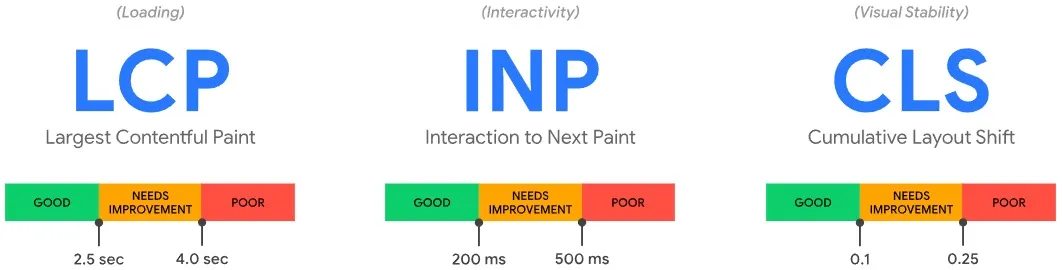
CWV Debt represents the cumulative negative impact on your store's Core Web Vitals scores due to unoptimized assets, inefficient code, and excessive third-party scripts. It's a technical debt specifically tied to frontend performance metrics like Largest Contentful Paint (LCP), Cumulative Layout Shift (CLS), and First Input Delay (FID).
Shopify website code bloat debt
Shopify stores are particularly susceptible to CWV Debt due to their modular nature. The ease of installing apps, themes, and custom code often leads to a proliferation of render-blocking JavaScript, unoptimized CSS, and heavy media, each adding to the overall payload without stringent performance governance.
Liquid, Shopify's templating language, while powerful, can also contribute if not optimized. Inefficient Liquid loops or unnecessary asset includes can delay server response times and frontend rendering, creating a cascading effect on page load.
The Business Impact: SEO, Conversion, and User Experience
The ramifications of CWV Debt extend far beyond a technical score. Google explicitly integrates Core Web Vitals into its search ranking algorithms, making strong performance a non-negotiable for Shopify Technical SEO success.
 Developer optimizing Shopify Core Web Vitals
Poor LCP, high CLS, and sluggish FID directly correlate with increased bounce rates and reduced conversion rates. Users expect instant gratification; a slow-loading page immediately erodes trust and patience, often leading to abandonment before a product is even viewed.
Ultimately, CWV Debt translates into lost revenue and diminished brand perception. A superior user experience, driven by fast, stable, and interactive pages, is fundamental to retaining customers and fostering loyalty in the competitive e-commerce landscape.
Diagnosing the Hidden Bloat: Shopify-Specific Audit Tools & Methodologies
What is Core Web Vitals Debt? Core Web Vitals Debt is the accumulated negative impact on a website's Core Web Vitals metrics (LCP, FID, and CLS) resulting from unoptimized code, heavy assets, and excessive third-party scripts. It's a form of technical debt that directly impairs user experience and search engine performance, often manifesting as slow load times and visual instability, particularly prevalent in highly customizable platforms like Shopify due to frequent app and theme modifications.
Beyond PageSpeed Insights: Leveraging Lighthouse CI & WebPageTest for Deeper Insights
While Google PageSpeed Insights offers a convenient snapshot, it's merely a starting point. For enterprise-level Shopify Plus stores, a more robust and consistent auditing approach is essential. Lighthouse CI allows integration into your continuous integration/continuous deployment (CI/CD) pipeline, enabling automated performance regressions detection with every code push.
WebPageTest provides unparalleled granularity, offering filmstrip views, detailed waterfall charts, and the ability to test from multiple geographic locations and device types. This allows for precise identification of resource loading order, render-blocking issues, and network-specific bottlenecks that PageSpeed Insights might obscure.
Use WebPageTest's advanced settings to simulate various network conditions and cache states. This helps uncover issues that only appear on first-time visits or specific bandwidth limitations, providing a comprehensive picture of your Shopify speed optimization efforts.
Profiling Shopify's Frontend: Identifying Liquid, App, and Theme Bottlenecks
Browser developer tools are indispensable for real-time frontend profiling. The Performance tab in Chrome DevTools can record page load events, revealing exactly where CPU time is spent and identifying long-running tasks or excessive JavaScript execution.
Focus on the "Main" thread activity to pinpoint render-blocking Liquid operations, slow inline scripts, or expensive DOM manipulations introduced by themes or apps. Look for large red blocks indicating long tasks that delay interactivity.
For app-specific issues, scrutinize the Network tab to identify which external scripts are heaviest or taking the longest to load. Correlate these with the Performance tab to see their impact on parsing and execution. This granular analysis is crucial for effective Shopify app performance audit.
Repaying JavaScript Debt: Strategic Deferral and Asynchronous Loading
JavaScript is often the primary culprit behind poor Core Web Vitals, especially LCP and FID. Managing its execution effectively is paramount to improving perceived and actual page speed.
Identifying Render-Blocking JavaScript in Shopify Themes
Render-blocking JavaScript prevents the browser from rendering the page until the script has been downloaded, parsed, and executed. These scripts are typically found in the <head> of your HTML document without `async` or `defer` attributes.
Common offenders include analytics scripts, A/B testing tools, and critical theme functionality that developers mistakenly place in the document head. Even small, seemingly innocuous scripts can significantly impact LCP and FID.
Use Lighthouse reports to identify "Eliminate render-blocking resources" opportunities. The detailed breakdown will point directly to specific script URLs that are delaying initial page rendering.
Implementing `defer` and `async` for Third-Party Scripts and Custom JS
The `async` and `defer` attributes are powerful tools for controlling JavaScript execution without blocking the browser's renderer. Understanding their nuances is key to effective Defer JavaScript Shopify strategies.
Here are the steps to implement `defer` and `async` effectively:
- Analyze Script Dependencies: Determine if a script relies on other scripts or the DOM being fully parsed. Scripts with no dependencies, like analytics, are good candidates for `async`.
- Apply `async` for Independent Scripts: For scripts that can execute independently and don't modify the DOM structure during page load, add `async` to their
<script>tag. Example:<script src="analytics.js" async></script>. - Apply `defer` for Dependent Scripts: For scripts that depend on the HTML document being parsed or other scripts executing in order, use `defer`. These scripts will execute in order after the HTML is parsed, but before the `DOMContentLoaded` event. Example:
<script src="theme-logic.js" defer></script>. - Leverage Shopify's `script_tag` Filter: When dynamically injecting scripts via Liquid, you can often append these attributes. For instance,
{{ 'script.js' | asset_url | script_tag: async: true }}. - Prioritize Critical Scripts: Any JavaScript absolutely essential for the initial render (e.g., above-the-fold interactive elements) might need to be inlined or loaded without `async`/`defer` but should be minimal and optimized.
Module/Nomodule Patterns for Modern Browser Optimization
The module/nomodule pattern allows you to deliver modern, efficient JavaScript to browsers that support ES modules, while providing a fallback for older browsers. This reduces the payload for the majority of users.
Use <script type="module"> for your modern JavaScript bundles. For older browsers, provide a fallback with <script nomodule> containing transpiled code or polyfills.
This approach ensures modern browsers only download and execute the smaller, optimized module code, preventing them from parsing unnecessary legacy JavaScript. It's a powerful technique for progressive enhancement and reducing JavaScript execution time.
Conquering CSS Bloat: Critical Path CSS and Efficient Stylesheet Delivery
CSS can also be render-blocking, delaying the first paint and impacting LCP. Optimizing its delivery is crucial for achieving fast initial page loads.
Extracting and Inlining Critical CSS for Shopify Templates
Critical CSS refers to the minimum amount of CSS required to render the above-the-fold content of a webpage. Inlining this CSS directly into the <head> of your HTML eliminates a render-blocking request to an external stylesheet.
Tools like Critical CSS Generator can help extract this CSS. The challenge with Shopify lies in its dynamic nature and various templates. You'll need to generate and inject critical CSS specific to each template type (product, collection, home page) using Liquid logic.
This often involves creating separate Liquid snippets for critical CSS and conditionally including them. While complex, the improvement in LCP can be significant, making it a cornerstone of advanced Shopify Theme Optimization.
Asynchronous Loading of Non-Critical Stylesheets
Once critical CSS is inlined, the remaining, non-critical stylesheets can be loaded asynchronously to avoid blocking render. A common technique involves using <link rel="preload" as="style" with an `onload` attribute.
Example: <link rel="preload" href="theme.css" as="style" onload="this.onload=null;this.rel='stylesheet'"><noscript><link rel="stylesheet" href="theme.css"></noscript>. This loads the stylesheet in the background and applies it once downloaded, preventing render blocking.
Another method uses media="print" to trick the browser into loading the stylesheet non-render-blocking, then changing it to media="all" with JavaScript. Both methods prioritize content rendering over full stylesheet application.
Purging Unused CSS: Tools and Shopify Integration Challenges
Over time, themes accumulate unused CSS from removed features, abandoned experiments, or overly broad declarations. This bloats file sizes and increases parsing time. Tools like PurgeCSS can analyze your templates and remove unused styles.
Integrating PurgeCSS with Shopify's build process can be challenging due to Liquid's dynamic nature and the difficulty of analyzing all possible states. A common approach involves running PurgeCSS against a comprehensive set of rendered HTML pages from your store.
For app-injected CSS, purging is often impossible without modifying the app's code. This highlights the importance of auditing app impact on Async CSS Shopify and general stylesheet bloat before installation.
Image & Media Optimization: Preventing Visual Debt Accumulation
Images and media are frequently the largest contributors to page weight and often directly impact LCP and CLS. Proper optimization is non-negotiable for fast Shopify stores.
Implementing Native Lazy Loading and Responsive Images (srcset)
Native lazy loading, via the loading="lazy" attribute, defers the loading of offscreen images until they are about to enter the viewport. This significantly reduces initial page load time and bandwidth consumption.
Responsive images, utilizing `srcset` and `sizes` attributes, deliver appropriately sized images based on the user's device and viewport. This prevents mobile users from downloading desktop-sized images, which is a common source of LCP issues.
Shopify's image URLs support various transformations, making it straightforward to generate multiple `srcset` options directly in Liquid. This ensures that users receive the most optimized image for their context.
Leveraging Shopify's CDN for WebP and Next-Gen Formats
Shopify's CDN automatically serves images in modern formats like WebP to compatible browsers, often reducing file size by 25-35% without perceptible quality loss. Ensure your images are uploaded at high quality to allow the CDN to perform these optimizations effectively.
While Shopify handles WebP conversion, explicitly including <picture> elements with <source type="image/webp"> can offer more control and provide a robust fallback. This is a crucial aspect of Shopify image lazy loading and next-gen format delivery.
Verify that your theme templates are correctly configured to use Shopify's image URL filters (e.g., `img_url`) which facilitate these automatic optimizations and dynamic resizing.
Video and GIF Optimization Strategies
Videos and GIFs can be extremely heavy. For videos, always use the <video> tag with preload="none", `autoplay`, `loop`, and `muted` attributes as appropriate, especially for background videos. Include a `poster` attribute for a static thumbnail.
Consider converting GIFs to optimized video formats like MP4 or WebM. These formats offer significantly smaller file sizes and better playback performance compared to traditional GIFs, which are essentially unoptimized image sequences.
Host larger video files on dedicated video platforms like YouTube or Vimeo and embed them, leveraging their optimized streaming capabilities. This offloads the bandwidth and processing burden from your Shopify store.
Taming Third-Party Apps & Scripts: The External Debt Burden
The Shopify app ecosystem is a double-edged sword. While apps extend functionality, they are a primary source of CWV Debt, injecting unoptimized JavaScript and CSS.
Auditing App Performance Impact on CWV
Every app installed adds code to your storefront, impacting load times and potentially Core Web Vitals. Before installing any new app, conduct a preliminary performance assessment on a staging environment.
Post-installation, use WebPageTest and Lighthouse to identify the performance footprint of new apps. Look for newly introduced render-blocking scripts, excessive network requests, or significant CPU time consumed by third-party JavaScript.
Regularly review your installed apps. If an app isn't delivering significant ROI relative to its performance cost, consider alternatives or custom development. This proactive Shopify app performance audit is vital.
Conditional Loading and Script Managers for Shopify Apps
Not all app scripts need to load on every page. Implement Liquid logic to conditionally load app scripts only on pages where their functionality is required.
For instance, a product review app's JavaScript might only be needed on product pages. Wrap its script inclusion in an {% if template == 'product' %} block. This is a core aspect of effective Third-party script management Shopify.
Consider using a script manager app (if performance-optimized itself) or a custom solution to centralize and control the loading of third-party scripts. This provides a single point of control for `async`/`defer` attributes and conditional loading.
Vendor Consolidation and Alternatives
Evaluate your app stack for redundancy. Multiple apps performing similar functions (e.g., two different pop-up apps) often lead to unnecessary script duplication and performance overhead. Consolidate where possible.
For critical functionalities, consider custom development over off-the-shelf apps, especially for Shopify Plus merchants. A custom solution, built with performance in mind, can be significantly lighter and more efficient than a generic app designed for broad applicability.
Sometimes, a less feature-rich but highly performant app is preferable to a feature-rich but performance-heavy alternative. Prioritize performance in your app selection criteria.
Font Loading Strategies: Eliminating Layout Shifts and Flash of Unstyled Text
Web fonts, while enhancing branding, can significantly impact LCP and CLS if not loaded efficiently. Managing them correctly prevents visual instability.
Preloading Critical Fonts and `font-display: swap` Implementation
Preloading critical fonts using <link rel="preload" as="font" crossorigin> tells the browser to fetch these fonts early in the rendering process, preventing a "flash of unstyled text" (FOUT) or "flash of invisible text" (FOIT).
The `font-display: swap` CSS property instructs the browser to immediately display a fallback font while the custom font is loading. Once the custom font is ready, it "swaps" in, minimizing the impact on LCP and eliminating FOIT entirely.
Combine preloading with `font-display: swap` for the optimal user experience. This ensures the text is visible quickly and then gracefully transitions to the branded font, a key Shopify font preloading strategy.
Self-Hosting vs. Google Fonts: Performance Implications
While Google Fonts offers convenience, self-hosting your fonts often provides superior performance control. Self-hosting eliminates a third-party DNS lookup and connection, and you can apply aggressive caching headers.
When self-hosting, ensure your font files are served from your Shopify assets, leveraging Shopify's CDN. Convert fonts to modern formats like WOFF2 for maximum compression and browser compatibility.
If using Google Fonts, ensure you only request the specific weights and subsets you need. Avoid requesting entire font families, as this significantly increases payload. Use <link rel="preconnect" for Google Fonts domains to speed up connections.
Advanced Debt Management: Shopify CDN, Edge Caching, and Server-Side Rendering (SSR) Considerations
For high-traffic Shopify Plus stores, pushing performance boundaries requires exploring advanced architectural strategies beyond basic frontend optimizations.
Maximizing Shopify's CDN for Asset Delivery
Shopify's Content Delivery Network (CDN) is a powerful asset for distributing static files globally. Ensure all your theme assets—images, CSS, JavaScript, and fonts—are uploaded to Shopify and referenced using the `asset_url` filter.
This ensures they are served from edge locations closest to your users, reducing latency. Avoid hosting static assets externally unless absolutely necessary, as this bypasses Shopify's optimized CDN infrastructure.
Regularly audit your asset references to confirm they are correctly leveraging the CDN. Misconfigured paths or direct external links can negate this critical performance advantage.
Exploring Edge Worker Solutions for Dynamic Content Caching
Shopify's caching is effective for static content, but dynamic elements (e.g., personalized content, A/B test variations) often bypass it. Edge worker solutions, like Cloudflare Workers, can extend caching capabilities to this dynamic content.
Edge workers sit between your users and Shopify, allowing you to implement custom caching logic, perform A/B test routing at the edge, or even transform responses before they reach the browser. This can significantly reduce server load and improve perceived latency.
Implementing edge workers requires expertise in web architecture and careful consideration of cache invalidation strategies. It's an advanced technique best suited for complex Shopify Plus Consulting scenarios.
When to Consider Shopify Hydrogen for Headless Performance Gains
For the absolute pinnacle of performance and control, especially for stores with extreme traffic or unique user experience requirements, a headless Shopify architecture built with Hydrogen might be the answer. Hydrogen is Shopify's React-based framework for building custom storefronts.
Hydrogen leverages React Server Components and Suspense to enable true server-side rendering (SSR) and streaming, delivering exceptionally fast initial page loads and superior interactivity. It offers complete control over the frontend stack, eliminating many of the constraints of a monolithic theme.
However, adopting Hydrogen represents a significant increase in development complexity and ongoing maintenance. It's a strategic decision for merchants who have exhausted traditional optimization methods and are prepared for a full Shopify Migration Service to a headless setup.
Building a Debt-Free Future: Continuous Monitoring and Performance Budgets
Eliminating CWV Debt is an ongoing process, not a one-time fix. Proactive monitoring and disciplined development practices are essential for long-term performance.
Setting Up Automated CWV Monitoring and Alerts
Implement a robust monitoring strategy to track your Core Web Vitals over time. Google Search Console provides field data (Real User Monitoring - RUM), offering the most accurate representation of user experience.
Supplement this with synthetic monitoring tools like Lighthouse CI, SpeedCurve, or GTmetrix, integrated into your CI/CD pipeline. Configure alerts to notify your team immediately if CWV scores drop below predefined thresholds.
RUM solutions provide invaluable insights into how actual users experience your site across different devices and network conditions, allowing you to identify performance bottlenecks that synthetic tests might miss.
Establishing Performance Budgets for New Features and App Installations
A performance budget defines acceptable limits for various page metrics (e.g., total JavaScript size, image weight, network requests, LCP score). Integrate these budgets into your development workflow and treat them as non-negotiable requirements.
Before implementing a new feature or installing an app, assess its potential impact against your performance budget. If it pushes you over budget, either optimize the new addition or refactor existing code to compensate.
This proactive approach prevents the re-accumulation of CWV Debt. Tools like webpack-bundle-analyzer can help visualize JavaScript bundle sizes and ensure they stay within budget.
Fostering a Performance-First Development Culture
Ultimately, sustained performance improvements stem from a culture that prioritizes speed and user experience at every stage of development. Educate your design, development, and marketing teams on the importance of Core Web Vitals.
Integrate performance considerations into design mockups, development sprints, and QA processes. Make performance a key criterion for code reviews and app selections.
By fostering a performance-first mindset, your organization can build a truly debt-free and high-performing Shopify store, delivering an exceptional experience for every customer. This cultural shift is crucial for long-term Shopify CRO Consulting success.
Frequently Asked Questions
What is Core Web Vitals Debt in Shopify, and why is it a critical concern for e-commerce stores?
Core Web Vitals Debt (CWV Debt) in Shopify refers to the cumulative negative impact on a store's key performance metrics—Largest Contentful Paint (LCP), First Input Delay (FID), and Cumulative Layout Shift (CLS)—resulting from unoptimized code, heavy assets, and excessive third-party scripts. This "debt" is a form of technical liability that accrues over time, often due to the ease of installing numerous apps, themes, and custom code without stringent performance governance. Each addition can introduce render-blocking JavaScript, unoptimized CSS, or large media files, degrading user experience and search engine rankings. For e-commerce, CWV Debt is critical because Google integrates Core Web Vitals into its ranking algorithms, directly affecting visibility. Moreover, poor LCP, high CLS, and sluggish FID lead to increased bounce rates, reduced conversion rates, and ultimately, lost revenue, as users abandon slow-loading pages. Addressing CWV Debt is fundamental for maintaining a competitive edge, fostering customer loyalty, and ensuring robust Shopify Technical SEO.
How can I identify render-blocking resources on my Shopify store?
To identify render-blocking resources, start with Google PageSpeed Insights, which highlights specific scripts and stylesheets delaying page render. For deeper analysis, use WebPageTest for detailed waterfall charts and filmstrip views, or integrate Lighthouse CI into your development workflow for automated detection. Browser developer tools (e.g., Chrome DevTools' Performance tab) can also pinpoint long-running tasks and excessive JavaScript execution that block the main thread.
Do Shopify apps really impact Core Web Vitals, and how can I manage their performance?
Yes, Shopify apps are a primary source of Core Web Vitals Debt. They inject additional JavaScript, CSS, and make network requests, often without optimization. To manage this, conduct a performance audit on a staging environment before installing new apps. Post-installation, use tools like WebPageTest to measure their impact. Implement conditional loading for app scripts, ensuring they only load on pages where their functionality is essential (e.g., product page reviews). Regularly review and consolidate apps, prioritizing performance over excessive features.
What are the most effective strategies for improving Largest Contentful Paint (LCP) on a Shopify store?
Improving LCP on Shopify involves several key strategies. Prioritize image optimization by implementing native lazy loading (`loading="lazy"`) and responsive images (`srcset`). Ensure Shopify's CDN serves images in next-gen formats like WebP. Extract and inline critical CSS for above-the-fold content, and asynchronously load non-critical stylesheets. Defer or asynchronously load non-essential JavaScript using `defer` and `async` attributes. Finally, preload critical web fonts and use `font-display: swap` to prevent FOUT/FOIT.

Ecommerce manager, Shopify & Shopify Plus consultant with 10+ years of experience helping enterprise brands scale their ecommerce operations. Certified Shopify Partner with 130+ successful store migrations.